監控您的 IoT 數據,
從未如此簡單。
SensorDeck 將您的 ThingSpeak 頻道帶到 iPhone、iPad 與 Apple Watch。即時圖表、智慧警示、主畫面小工具與 Siri,讓您不開 App 也能掌握感測器狀況。
Monitor Your IoT Data,
Easier Than Ever.
SensorDeck brings your ThingSpeak channels to iPhone, iPad and Apple Watch. Real-time charts, smart alerts, Home Screen widgets and Siri keep you informed — even without opening the app.
IoT データの監視を、
もっとシンプルに。
SensorDeck は ThingSpeak チャネルを iPhone、iPad、Apple Watch に届けます。リアルタイムチャート、スマートアラート、ホーム画面ウィジェット、Siri で、アプリを開かなくてもセンサーの状態を把握できます。
為什麼選擇 SensorDeck?
Why Choose SensorDeck?
SensorDeck が選ばれる理由
清楚的圖表
Clear Charts
見やすいグラフ
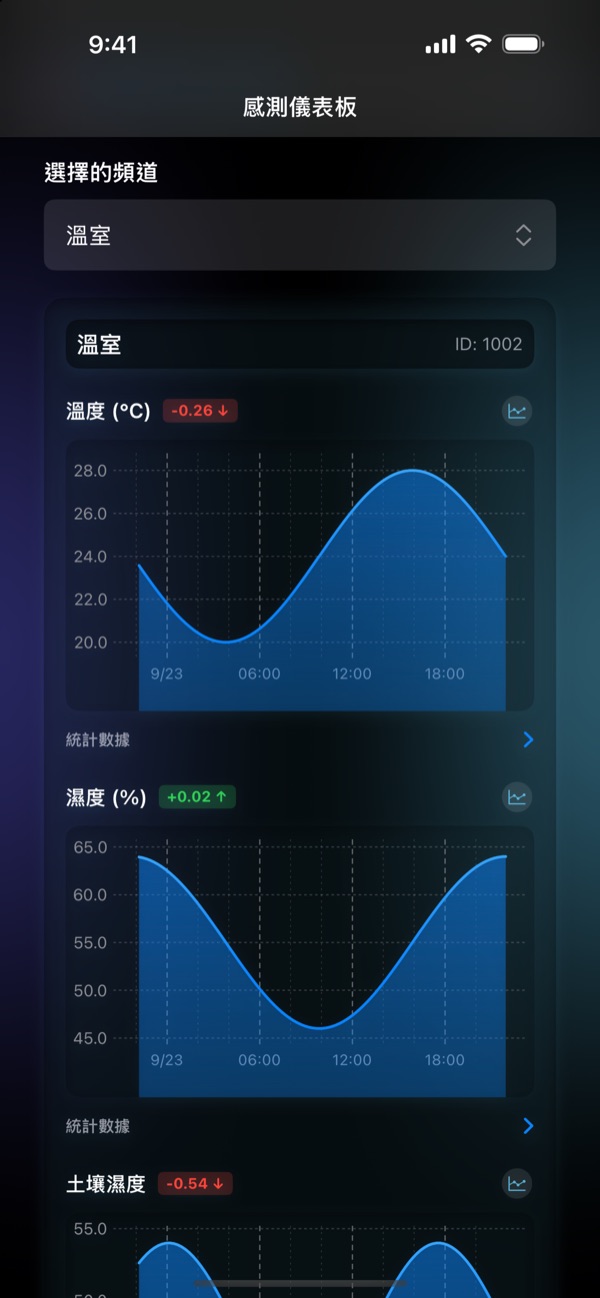
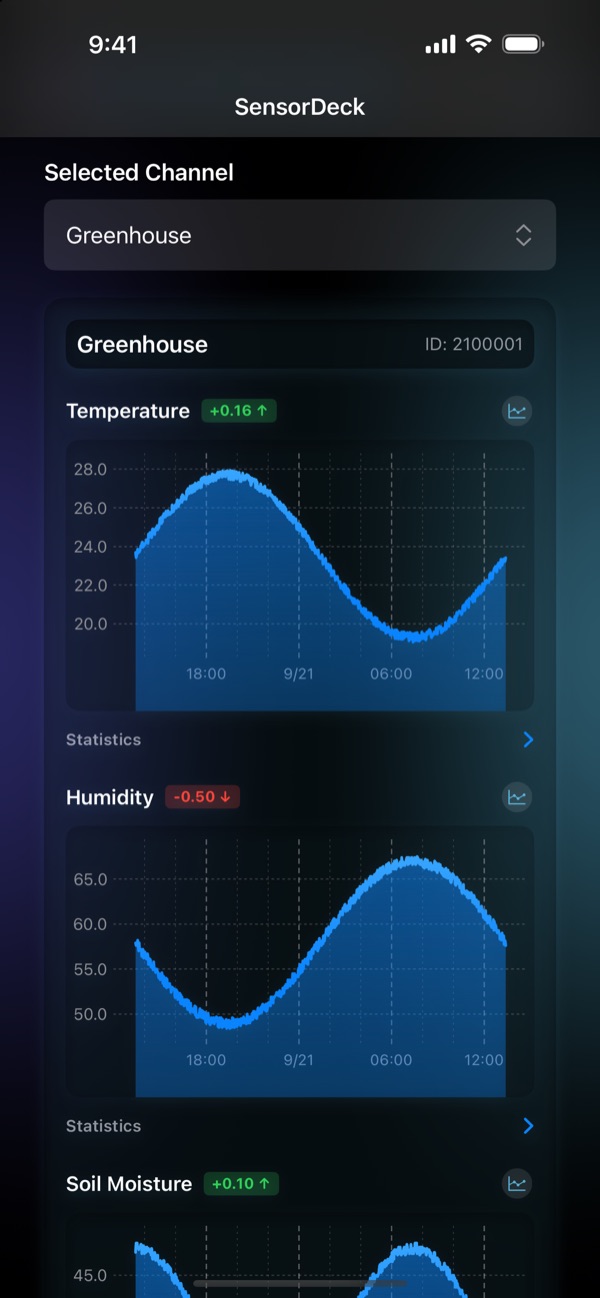
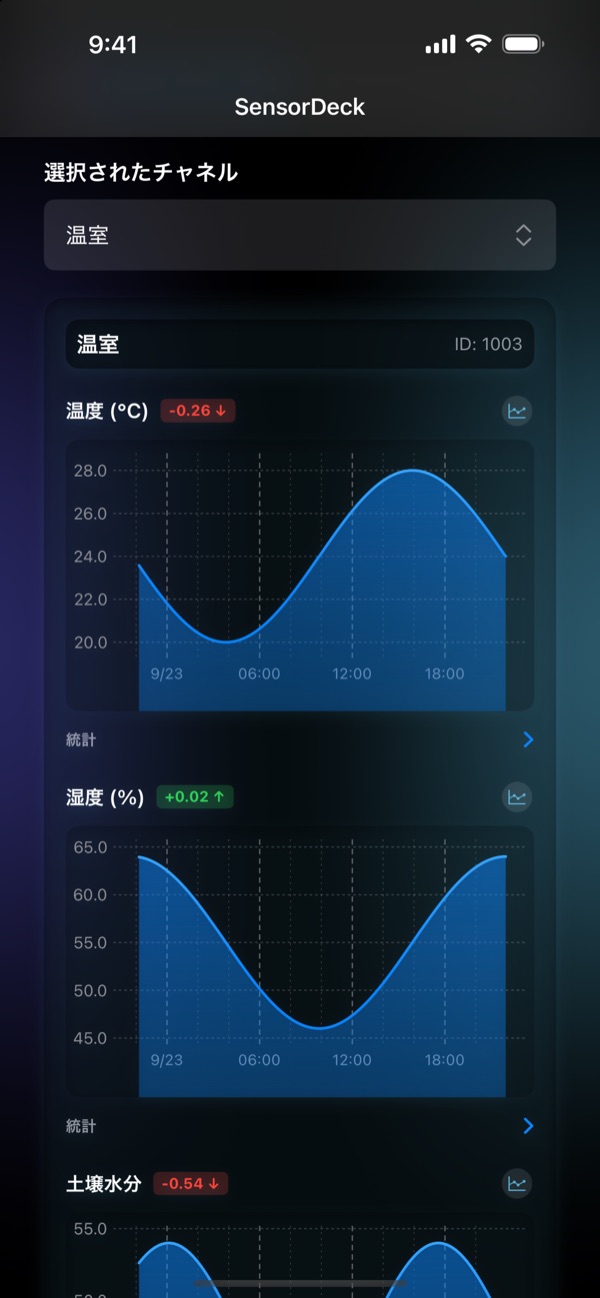
區域、折線與長條圖,時間範圍從 10 分鐘到 1 週。刻度會隨範圍自動調整,同一頻道的欄位共用同一條時間軸。
Area, line and bar charts from 10 minutes to 1 week. Time labels adapt to the range, and every field of a channel shares one time axis.
エリア・折れ線・棒グラフで 10 分〜1 週間を表示。目盛りは期間に合わせて自動調整され、同じチャネルの全フィールドが同じ時間軸を共有します。
智慧警示
Smart Alerts
スマートアラート
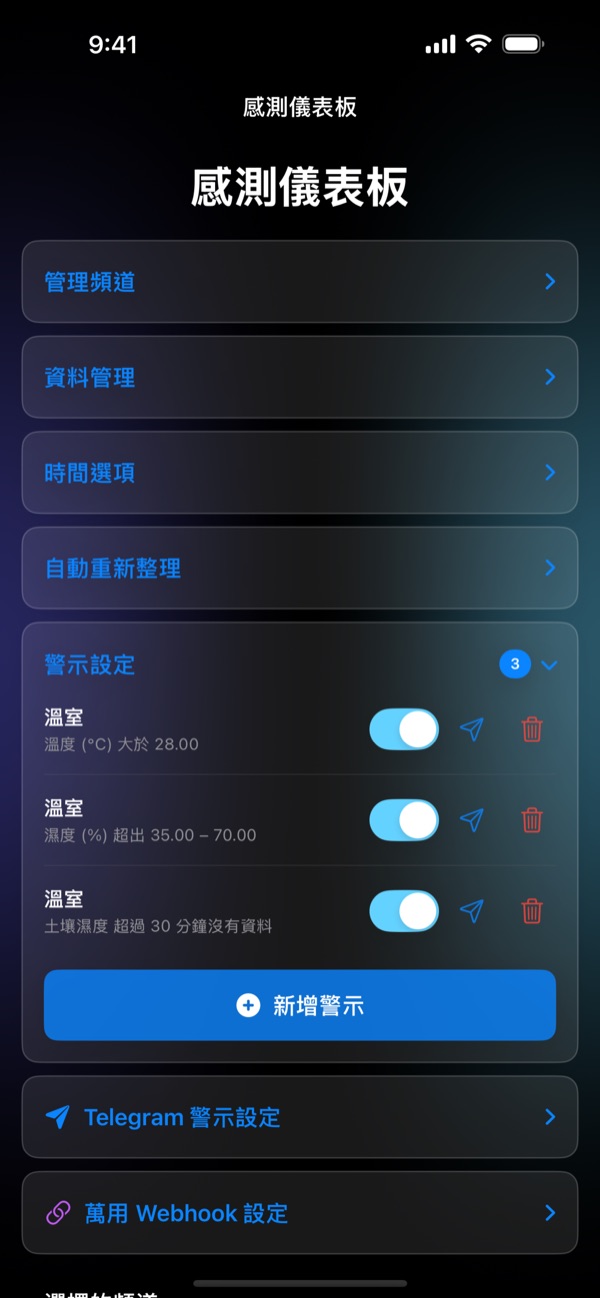
超過門檻、超出/落在區間、變化過快,或感測器離線都能通知。支援勿擾時段、重複間隔、恢復通知與自訂訊息。
Alert on thresholds, ranges, rapid changes or a sensor going offline — with quiet hours, repeat limits, recovery notices and custom messages.
しきい値、範囲外/範囲内、急激な変化、センサーのオフラインを通知。おやすみ時間、再通知間隔、復旧通知、カスタムメッセージにも対応。
主畫面與鎖定畫面小工具
Home & Lock Screen Widgets
ホーム・ロック画面ウィジェット
把任一感測器放到主畫面或鎖定畫面,顯示最新數值與近期趨勢。App 沒開也會自動更新。
Put any sensor on your Home or Lock Screen with its latest value and recent trend. Widgets refresh on their own, even when the app is closed.
任意のセンサーをホーム画面やロック画面に表示し、最新値と推移を確認。アプリを閉じていても自動で更新されます。
Apple Watch 與錶面
Apple Watch & Complications
Apple Watch と文字盤
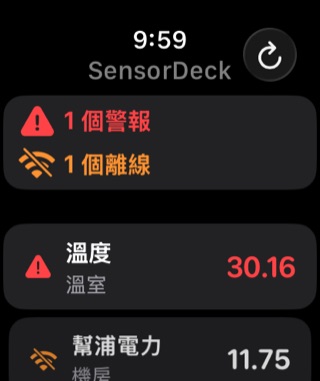
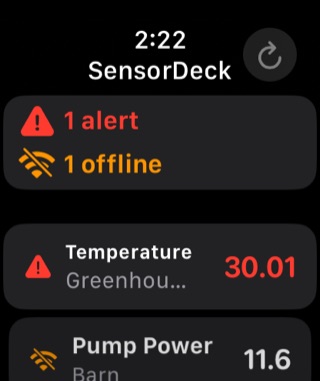
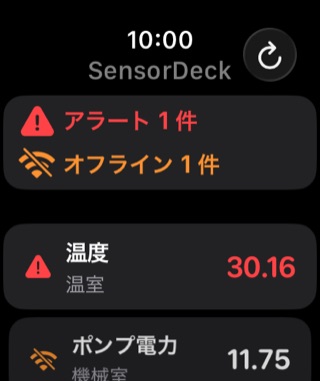
在手腕上巡查所有感測器,異常排在最前面;震動直接告訴您「全部正常」或「有異常」。也能把感測器放上錶面。
Patrol every sensor from your wrist, with problems listed first and a haptic that tells you "all clear" or "something is wrong". Add a sensor to your watch face, too.
手首からすべてのセンサーを点検。異常が先頭に並び、触覚で「すべて正常」か「異常あり」かが分かります。文字盤にも表示できます。
捷徑自動化與 Siri
Automations & Siri
オートメーションと Siri
PM2.5 超標自動開清淨機、每天定時巡查並在異常時通知。也能用 Siri、動作按鈕或 CarPlay 聽讀數。
Turn on a purifier when PM2.5 is high, or patrol your sensors on a schedule and get notified of problems. Hear readings with Siri, the Action button or CarPlay.
PM2.5 が高いと空気清浄機をオン、決まった時刻に巡回して異常時に通知。Siri、アクションボタン、CarPlay で値を聞くこともできます。
Telegram 與 Webhook
Telegram & Webhooks
Telegram と Webhook
除了 iPhone 本機通知,警示還能送到 Telegram、Discord、Slack,或透過 Webhook 串接 IFTTT、Make.com 等自動化平台。
Besides local iPhone notifications, send alerts to Telegram, Discord, Slack, or automation platforms such as IFTTT and Make.com via Webhook.
iPhone のローカル通知に加え、Telegram、Discord、Slack へ送信したり、Webhook で IFTTT や Make.com などと連携できます。
資料管理與 CSV 匯出
Data & CSV Export
データ管理と CSV 出力
自選資料在裝置上保留多久(6 小時至 7 天)。任一頻道都能匯出 CSV,自訂範圍最長一年。
Choose how long data stays on your device (6 hours to 7 days). Export any channel to CSV, with custom ranges of up to one year.
端末にデータを保持する期間を 6 時間〜7 日から選択。任意のチャネルを最長 1 年のカスタム期間で CSV に書き出せます。
iCloud 同步
iCloud Sync
iCloud 同期
警示規則與圖表樣式會透過 iCloud 在您的 iPhone 與 iPad 間自動同步。
Alert rules and chart styles sync automatically between your iPhone and iPad through iCloud.
アラートのルールとグラフの表示形式は、iCloud で iPhone と iPad の間で自動同期されます。
多國語言
Multilingual
多言語対応
App、小工具、Apple Watch 與 Siri 皆完整支援繁體中文、英文與日文。
The app, widgets, Apple Watch and Siri fully support Traditional Chinese, English and Japanese.
アプリ、ウィジェット、Apple Watch、Siri のすべてが繁体字中国語・英語・日本語に対応。
使用手冊與技術指南
User Guides & Technical Docs
ユーザーガイドと技術ドキュメント
🚀 開始使用:加入第一個頻道
- 打開「管理頻道」,輸入 ThingSpeak 的 Channel ID。也可以點 QR 碼按鈕掃描他人分享的頻道。
- 公開頻道不需要任何金鑰;私有頻道請貼上該頻道的 Read API Key(在 ThingSpeak 頻道的「API Keys」分頁)。
- 加入後即可在儀表板看到每個欄位的圖表。在「時間選項」切換 10 分鐘至 1 週的範圍,在「自動重新整理」設定每 10 秒、30 秒、1 分鐘或 5 分鐘更新一次。
- 想分享頻道給別人?在頻道上選擇「顯示 QR Code」,對方用 SensorDeck 掃描即可加入。
不需要註冊任何帳號,SensorDeck 直接從 ThingSpeak 讀取資料。
🚀 Getting Started: Add Your First Channel
- Open Manage Channels and enter your ThingSpeak Channel ID, or tap the QR button to scan a channel someone shared with you.
- Public channels need no key. For a private channel, paste its Read API Key (found on the channel's "API Keys" tab in ThingSpeak).
- Each field now appears as a chart on the dashboard. Use Time Options to switch between 10 minutes and 1 week, and Auto-refresh to update every 10 s, 30 s, 1 min or 5 min.
- To share a channel, choose Show QR Code on it; the other person scans it with SensorDeck.
No account is needed — SensorDeck reads directly from ThingSpeak.
🚀 はじめに:最初のチャネルを追加
- 「チャネル管理」を開き、ThingSpeak の チャネル ID を入力します。共有された QR コードをスキャンして追加することもできます。
- 公開チャネルはキー不要です。プライベートチャネルの場合は、ThingSpeak の「API Keys」タブにある Read API Key を貼り付けてください。
- 各フィールドがダッシュボードにグラフとして表示されます。「表示期間」で 10 分〜1 週間を切り替え、「自動更新」で 10 秒・30 秒・1 分・5 分ごとの更新を設定できます。
- チャネルを共有するには「QR コードを表示」を選び、相手が SensorDeck でスキャンします。
アカウント登録は不要で、SensorDeck は ThingSpeak から直接データを読み込みます。
🔔 警示規則
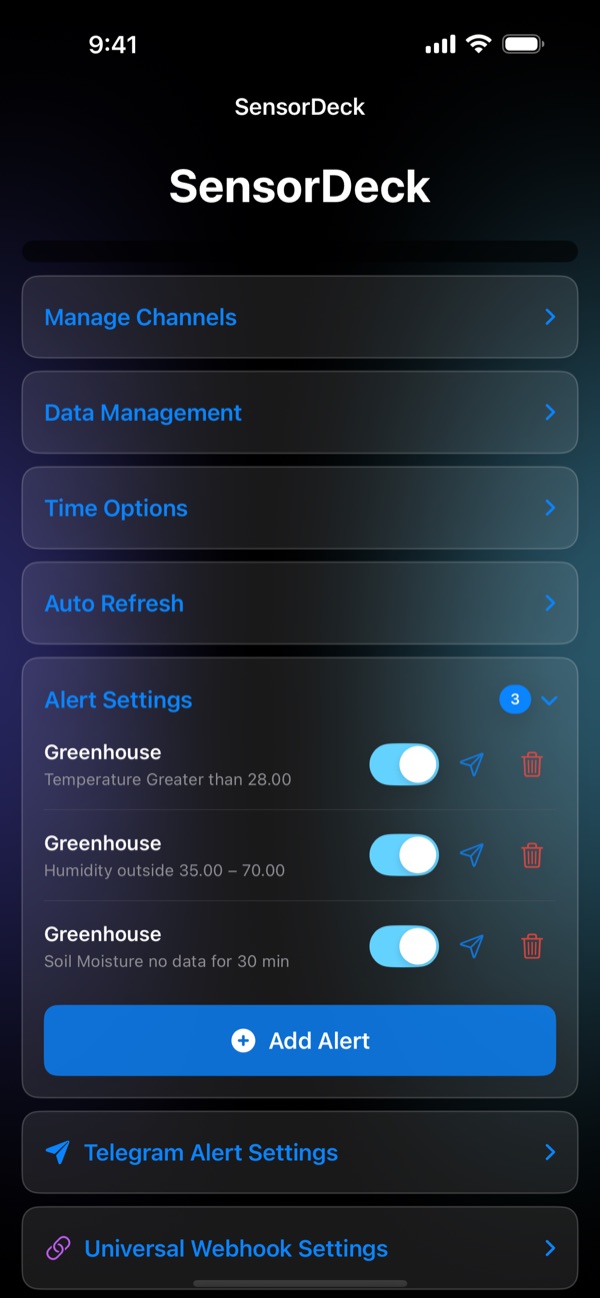
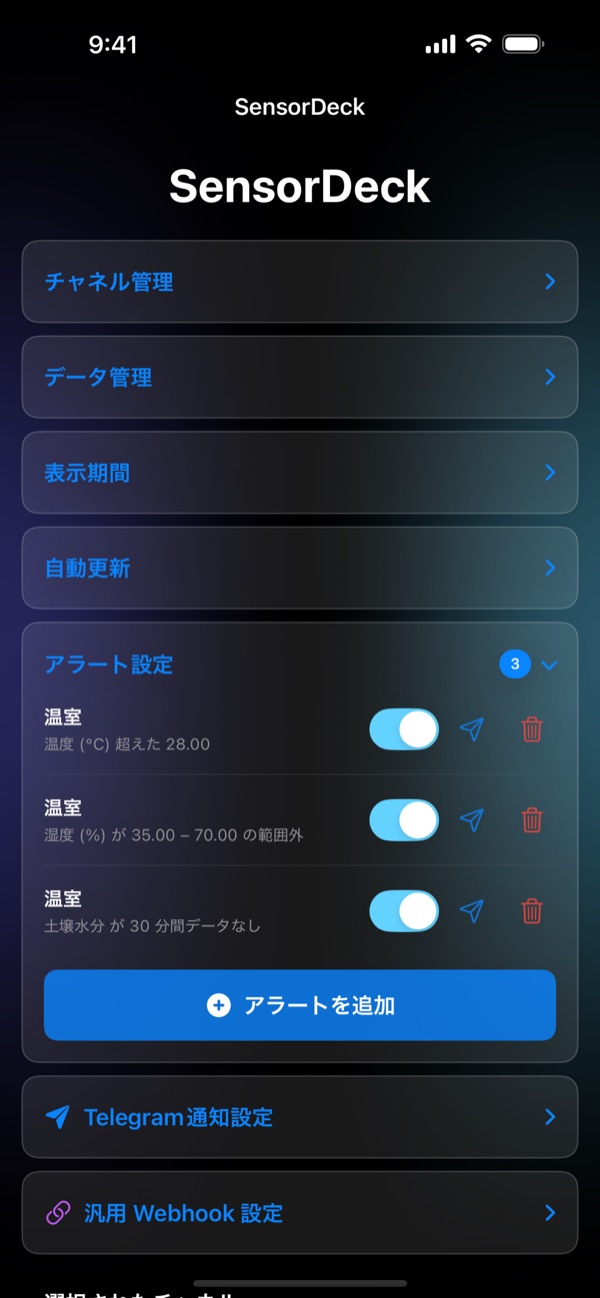
在「警示設定」點「新增警示」,選擇頻道、欄位與條件:
- 大於/小於:數值越過門檻時通知(免費版可用)。
- 超出區間/落在區間 專業版:例如濕度不在 35–70% 之間。
- 變化過快 專業版:在指定時間內變化超過設定值,例如 10 分鐘內溫度上升 5°C。
- 無資料(離線) 專業版:感測器超過指定時間沒有回報,可能已斷線或沒電。
進階選項 專業版
- 最短重複間隔:持續異常時,兩次通知至少間隔多久(1 分鐘至 12 小時,預設 5 分鐘)。
- 勿擾時段:例如晚上 11 點到早上 7 點不通知,可跨午夜。
- 恢復通知:數值回到正常或感測器重新回報時通知您。
- 自訂訊息:可使用
{channel}{field}{value}{threshold}{time},例如{channel}:{field} 目前 {value}。
每條規則旁的紙飛機按鈕可以立即發送一則測試通知。
🔔 Alert Rules
In Alert Settings, tap Add Alert and pick a channel, a field and a condition:
- Greater than / Less than: notify when a value crosses a threshold (free).
- Outside range / Inside range Premium: e.g. humidity outside 35–70%.
- Rapid change Premium: the value changes by more than an amount within a time window, e.g. +5 °C in 10 minutes.
- No data (offline) Premium: the sensor hasn't reported for a set time and may be disconnected or out of power.
Advanced options Premium
- Repeat at most every: minimum gap between notifications while a problem continues (1 minute to 12 hours, default 5 minutes).
- Quiet hours: e.g. no alerts from 11 PM to 7 AM; ranges can cross midnight.
- Notify when back to normal: get a notice when the value recovers or the sensor reports again.
- Custom message: use
{channel}{field}{value}{threshold}{time}, e.g.{channel}: {field} is {value}.
The paper-plane button next to each rule sends a test notification right away.
🔔 アラートのルール
「アラート設定」で「アラートを追加」をタップし、チャネル・フィールド・条件を選びます:
- より大きい/より小さい:値がしきい値を超えたときに通知(無料版で利用可)。
- 範囲外/範囲内 プレミアム:例:湿度が 35〜70% の範囲外。
- 急激な変化 プレミアム:指定時間内の変化量が設定値を超えたとき。例:10 分で 5°C 上昇。
- データなし(オフライン) プレミアム:センサーが一定時間データを送信していないとき。切断や電池切れの可能性があります。
詳細オプション プレミアム
- 再通知の最短間隔:異常が続く間の通知間隔(1 分〜12 時間、初期値 5 分)。
- おやすみ時間:例:23 時〜7 時は通知しない(日付をまたいで設定可)。
- 復旧通知:値が正常に戻ったり、センサーが再びデータを送信したときに通知。
- カスタムメッセージ:
{channel}{field}{value}{threshold}{time}が使えます。例:{channel}:{field} は {value}。
各ルールの紙飛行機ボタンで、テスト通知をすぐに送信できます。
📱 主畫面與鎖定畫面小工具
- 先打開 SensorDeck 一次,讓 App 把頻道與欄位清單提供給小工具。
- 長按主畫面空白處 → 左上角「編輯」→「加入小工具」→ 搜尋 SensorDeck,選擇小型或中型尺寸。
- 長按剛加入的小工具 →「編輯小工具」→ 選擇要顯示的感測器。
- 鎖定畫面:長按鎖定畫面 →「自訂」→ 點小工具區域 → 選 SensorDeck。
免費版可使用小型主畫面小工具;中型與鎖定畫面小工具需要專業版。觸發警示時,小工具會以醒目的方式標示。
📱 Home & Lock Screen Widgets
- Open SensorDeck once so it can share your channels and fields with the widget.
- Touch and hold an empty area of the Home Screen → Edit → Add Widget → search for SensorDeck and pick the small or medium size.
- Touch and hold the new widget → Edit Widget → choose the sensor to show.
- Lock Screen: touch and hold the Lock Screen → Customize → tap the widget area → choose SensorDeck.
The small Home Screen widget is free. Medium and Lock Screen widgets require Premium. When an alert rule is triggered, the widget highlights it.
📱 ホーム画面・ロック画面ウィジェット
- まず SensorDeck を一度開き、チャネルとフィールドの一覧をウィジェットに渡します。
- ホーム画面の空いている場所を長押し →「編集」→「ウィジェットを追加」→ SensorDeck を検索し、小または中サイズを選びます。
- 追加したウィジェットを長押し →「ウィジェットを編集」→ 表示するセンサーを選びます。
- ロック画面:ロック画面を長押し →「カスタマイズ」→ ウィジェット欄をタップ → SensorDeck を選びます。
小サイズのホーム画面ウィジェットは無料です。中サイズとロック画面ウィジェットにはプレミアムが必要です。アラート条件に当てはまると、ウィジェットで強調表示されます。
⌚️ Apple Watch App 與錶面複雜功能
- 在 iPhone 的「Watch」App 安裝 SensorDeck(通常會自動安裝)。
- 在 iPhone 上打開 SensorDeck 一次,感測器清單就會同步到手錶。之後手錶會自行向 ThingSpeak 取得最新數值。
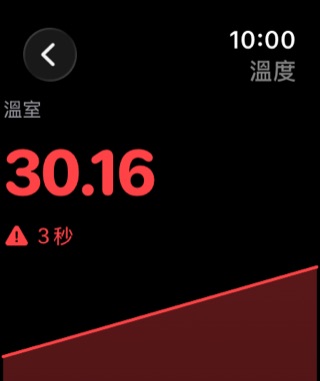
- 在手錶上打開 SensorDeck:警報與離線的感測器排在最前面,點進去可看數值、趨勢與最高/最低值。
- 完成巡查時,手錶會以震動告訴您結果:成功震動代表全部正常,失敗震動代表有異常。
- 錶面複雜功能:長按錶面 →「編輯」→ 滑到「複雜功能」→ 選擇位置 → SensorDeck。建議使用「模組化」或「資訊圖表」錶面。
免費版的手錶只顯示最需要注意的一個感測器;完整清單與錶面複雜功能需要專業版。
⌚️ Apple Watch App & Complications
- Install SensorDeck from the Watch app on your iPhone (it usually installs automatically).
- Open SensorDeck on your iPhone once so the sensor list syncs to the watch. After that, the watch fetches the latest values from ThingSpeak on its own.
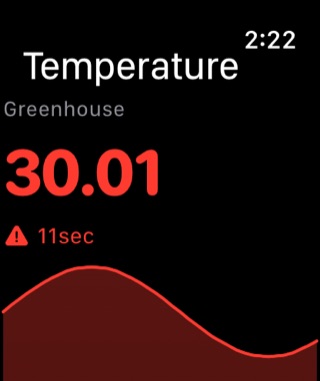
- Open SensorDeck on the watch: sensors with an alert or that are offline are listed first. Tap one to see its value, trend and high/low.
- When the patrol finishes, a haptic tells you the result — a success tap means all clear, a failure tap means something needs attention.
- Complication: touch and hold the watch face → Edit → swipe to Complications → pick a slot → SensorDeck. Modular or Infograph faces work best.
On the free version the watch shows the one sensor that needs attention most. The full list and complications require Premium.
⌚️ Apple Watch アプリと文字盤コンプリケーション
- iPhone の「Watch」App から SensorDeck をインストールします(通常は自動でインストールされます)。
- iPhone で SensorDeck を一度開くと、センサーの一覧がウォッチに同期されます。その後はウォッチが ThingSpeak から最新値を直接取得します。
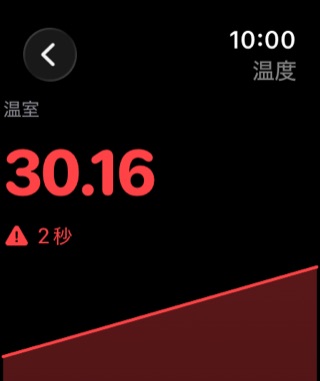
- ウォッチで SensorDeck を開くと、アラートやオフラインのセンサーが先頭に並びます。タップすると値・推移・最大/最小を確認できます。
- パトロールが終わると触覚で結果を知らせます。成功の振動は「すべて正常」、失敗の振動は「異常あり」です。
- コンプリケーション:文字盤を長押し →「編集」→「コンプリケーション」までスワイプ → 位置を選んで SensorDeck を選択。「モジュラー」や「インフォグラフ」がおすすめです。
無料版では、最も注意が必要なセンサー 1 つだけが表示されます。全センサーの一覧とコンプリケーションにはプレミアムが必要です。
🗣️ 捷徑自動化與 Siri
SensorDeck 在「捷徑」App 提供兩個動作,可以組成自動化,也可以直接對 Siri 說:
- 取得感測器讀數:唸出某個感測器的最新數值和更新時間,超出警示門檻或離線時會補一句提醒。
- 檢查我的感測器:一次檢查全部感測器,告訴您有幾個在警示、幾個離線。在捷徑裡還能取用「有異常」「警報數」「離線數」,方便做判斷。
讓感測器幫您做事:三個自動化範例
「取得感測器讀數」會回傳數值,可以接「如果」判斷,再去控制其他 App 或智慧家電。以下範例都在「捷徑」App 建立。
SensorDeck 的 App 內警示只在 App 開啟時檢查;用這個自動化,即使 App 沒開,也能在固定時間替您巡查。
- 「捷徑」App 下方點「自動化」→ 右上角「+」→「特定時間」,設定時間(例如 08:00)與「每天」,選「立即執行」→「下一步」→「新增空白自動化」。
- 加入 SensorDeck 的「檢查我的感測器」。
- 加入「如果」,輸入框選「感測器檢查結果」,再點一下它,從屬性清單選「有異常」,條件設為「是」。
- 在「如果」裡加入「顯示通知」,內容插入「感測器檢查結果」,通知會顯示和 Siri 念的一樣的摘要,例如「1 個警報:台中 PM2.5 (42)。」
檢查結果還有「警報數」「離線數」「感測器總數」可用,例如只在「離線數」大於 0 時通知。自動化只會在您設定的時間執行,不是連續監控;想一天檢查多次,就多建立幾個不同時間的自動化(例如 08:00、12:00、18:00、22:00)。
- 建立「特定時間」自動化(同上),或做成一般捷徑,按一下就執行。
- 加入「取得感測器讀數」,選擇 PM2.5 的感測器。
- 加入「如果」:「感測器讀數」「大於」
35。 - 在「如果」裡加入「家庭」App 的控制家庭動作,選擇清淨機(或接著清淨機的智慧插座)並設為「開啟」;也可以在「否則」裡設為「關閉」。
同樣的做法也適用於:溫度過高開風扇、土壤濕度太低開灌溉插座、濕度太高開除濕機。需要支援 Apple「家庭」的裝置。
- 建立捷徑,照下方「一句話同時查詢兩個數值」的步驟,把 PM2.5 與溫度組合成一句話。
- 命名為「客廳空氣」,之後說「嘿 Siri,客廳空氣」就會念出來。開車時搭配 CarPlay、戴 AirPods 時特別方便。
- iPhone 15 Pro 之後的機型,可以到「設定」→「動作按鈕」→「捷徑」選擇這個捷徑,按一下實體按鈕就能聽到結果。
- 也可以建立「鬧鐘」自動化(「自動化」→「+」→「鬧鐘」→「關閉時」),起床關掉鬧鐘後自動念出今天的空氣狀況。
感測器的名稱怎麼決定?
Siri 認得的感測器名稱是「頻道名稱 + 空格 + 欄位名稱」。例如頻道「客廳」的欄位「溫度」,名稱就是「客廳 溫度」。App 裡顯示什麼名稱,Siri 就用什麼名稱;在「管理頻道」修改頻道或欄位名稱後,Siri 會跟著更新。
使用前的準備
- 確認已購買專業版。如果剛買或剛換手機,請在 App 內點「恢復購買」。
- 打開 SensorDeck,等要查詢的頻道圖表都載入完成,然後回到主畫面。App 會在這時把感測器清單交給 Siri。
- Siri 的語言請設為中文(台灣)、English 或日本語,指令要用 Siri 的語言來說。
- 確認 SensorDeck 已允許搭配 Siri 使用:「設定」→「Siri」(或「Apple Intelligence 與 Siri」)→「App」→ SensorDeck,開啟相關選項。
語音查詢:直接對 Siri 說
- 「用 SensorDeck 取得感測器讀數」(推薦)— 不說名稱,Siri 會反問「哪一個感測器?」,這時用說的回答名稱的一部分即可,例如「台中溫度」、「溼度」或「PM2.5」。只說頻道名稱(例如「台中總部」)時,會把這個頻道的感測器依序念出來(最多 4 個)。也可以說「在 SensorDeck 讀取感測器」。
- 如果 Siri 常把「SensorDeck」聽錯,可以改說中文名稱:「用感測儀表板取得感測器讀數」。
- 「用 SensorDeck 檢查我的感測器」— 一次檢查全部感測器,也適合用來測試 Siri 是否能找到 SensorDeck。
- 「在 SensorDeck 查詢客廳 溫度」— 一句話說完整名稱,適合名稱短又好念的感測器。
- 請照上面的句子說。換成其他說法(例如「查數值」)時,Siri 可能改去搜尋網路,或當成在問「家庭」App 的裝置。
一句話說完整名稱時,Siri 必須把名稱聽得完全正確。名稱很長,或混合英文、數字、符號(例如「辦公室-PMS PM 2.5」)時,Siri 常常聽不準,建議改用「取得感測器讀數」讓 Siri 反問,或自己建立捷徑。回答 Siri 反問時比較寬鬆:會忽略空格、符號與大小寫,也可以只說頻道名稱的一部分加上欄位名稱。
語音查詢:自己建立捷徑(最穩定)
替捷徑取一個好念的名字,之後說「嘿 Siri,捷徑名稱」就會執行,完全不需要 Siri 聽懂感測器名稱。
- 打開「捷徑」App,點右上角「+」。
- 點「加入動作」,搜尋 SensorDeck,選「取得感測器讀數」。
- 點動作裡藍色的「感測器」,從清單選擇要查詢的感測器(清單是空的,代表還沒完成上面的準備步驟)。
- 點畫面最上方的捷徑名稱 →「重新命名」,取一個簡短、純中文的名字,例如「客廳溫度」。
- 點「完成」。先點一下捷徑確認能正常顯示數值,再對 Siri 說「嘿 Siri,客廳溫度」。
一句話同時查詢兩個數值
例如同時聽 PM2.5 和溫度:
- 建立新捷徑,加入兩個「取得感測器讀數」動作,第一個選 PM2.5 的感測器,第二個選溫度的感測器。
- 展開這兩個動作(點右側箭頭),把「執行時顯示」關閉,避免 Siri 各唸一次。
- 加入「文字」動作,輸入「客廳 PM2.5 是 」,接著點鍵盤上方的變數列,插入第一個動作的「感測器讀數」;再輸入「,溫度是 」,插入第二個動作的「感測器讀數」,最後輸入「度」。(插入變數時,如果兩個選項名稱一樣,請點「選取變數」再點畫面上對應的動作。)
- 加入「顯示結果」動作。透過 Siri 執行時,結果會被唸出來。
- 把捷徑命名為「客廳空氣」,然後說「嘿 Siri,客廳空氣」。
讓名稱更好念
在 SensorDeck「管理頻道」點頻道的編輯,可以修改頻道名稱與各欄位名稱。這些名稱只存在您的裝置上,不會改到 ThingSpeak。建議:
- 頻道名稱短一點,例如「台中」而不是「台中總部-PMS」;避免使用
-、_、括號等符號。 - 欄位名稱盡量用中文,例如「溫度」「濕度」;「PM 2.5」這類中英數混合的名稱,Siri 比較難聽準。
- 儲存後 Siri 的清單會立即更新。已建立的捷徑不受影響,不需要重選感測器。
新名稱也會用在小工具、Apple Watch 和警示通知上。
問題排除
| 症狀 | 原因與解法 |
|---|---|
| Siri 回答「這需要 SensorDeck Premium,你可以在 App 裡解鎖。」 | Siri 讀到的購買狀態是「未購買」。請打開 SensorDeck 等畫面載入完成;仍不行時,到 App 內點「恢復購買」,再打開一次 App。 |
| Siri 回答「目前還沒有感測器。請先開啟 SensorDeck 並載入頻道。」 | App 還沒把感測器清單交給 Siri。打開 SensorDeck,等頻道圖表出現後回到主畫面,再試一次。 |
| Siri 回答「找不到這個感測器。請先開啟一次 SensorDeck 來同步感測器。」 | 捷徑裡選的感測器已經不在清單裡,例如頻道被刪除,或 Channel ID 被修改過。打開 SensorDeck 同步後,到捷徑裡重新選擇感測器。 |
| Siri 回答「目前無法取得這個感測器的讀數。」 | 連不上 ThingSpeak,而且裝置上也沒有這個欄位的資料。請檢查網路;私有頻道請確認 Read API Key 正確;也請確認這個欄位最近真的有上傳資料。 |
| Siri 聽不懂、去網路搜尋,或說「我不太清楚」 | Siri 沒有把您說的話對應到 SensorDeck 的指令,最常見的原因是感測器名稱沒聽準。先試「用 SensorDeck 檢查我的感測器」;這句可以的話,改說「用 SensorDeck 取得感測器讀數」讓 Siri 反問,或自己建立捷徑。 |
| Siri 反問「哪一個感測器?」後聽不懂回答 | 「用 SensorDeck 取得感測器讀數」反問時,直接說名稱的一部分,例如「溫度」、「PM2.5」或「台中溫度」;空格、符號與大小寫不影響比對,符合多個時會全部念出來。若 Siri 回答「找不到符合……的感測器」,畫面上會顯示它聽到的字,請換個說法。 若是其他指令跳出感測器清單,Siri 只會比對清單上的名稱,可以說欄位名稱(例如「溫度」),或直接點選。 |
| Siri 回答「你沒有家庭裝置」之類的話 | Siri 沒聽出您在叫 SensorDeck,就把含有「溫度」「濕度」的句子當成在問「家庭」App 的裝置。請看 Siri 畫面上顯示的文字,App 名稱通常被聽成別的字。可以改用中文名稱「感測儀表板」,例如「用感測儀表板取得感測器讀數」;最穩定的做法是自己建立捷徑,並取一個不含「溫度」「濕度」的名字,例如「台中空氣」。 |
| Siri 只顯示文字,沒有念出來 | 這由 iPhone 的設定決定:「設定」→「Siri」(或「Apple Intelligence 與 Siri」)→「Siri 回應」。設為「自動」時,靜音模式或您正在看螢幕時只會顯示;改成「偏好語音回應」就會念出來。用打字方式問 Siri,或在「捷徑」App 裡手動執行時,也只會顯示。 |
| 「捷徑」App 搜尋不到 SensorDeck,或感測器清單是空的 | 剛安裝或更新後,系統需要一點時間登錄動作。打開一次 SensorDeck,完全關閉「捷徑」App 後再打開;仍然沒有時,重新開機。 |
| 自動化沒有執行,或執行前要我確認 | 編輯該自動化,確認選的是「立即執行」而不是「執行前詢問」。另外,自動化只會在設定的時間執行。 |
| 讀數比 App 裡舊 | Siri 會先向 ThingSpeak 取得最新數值,失敗時才使用 App 最後存下的資料。回答中的「幾分鐘前更新」就是這筆資料的時間;時間很久時,請確認感測器仍在上傳。 |
排查時建議依序測試:① 在「捷徑」App 手動點一下「取得感測器讀數」,確認能取得資料 → ② 對 Siri 說「用 SensorDeck 檢查我的感測器」,確認 Siri 找得到 App → ③ 再測試說出感測器名稱的指令或自建捷徑。這樣可以知道問題出在資料、Siri 找 App,還是感測器名稱。
🗣️ Shortcuts Automations & Siri
SensorDeck adds two actions to the Shortcuts app. Build automations with them, or say them to Siri:
- Get Sensor Reading: speaks a sensor's latest value and when it was updated, and adds a warning if it's past an alert threshold or offline.
- Check My Sensors: checks every sensor at once and tells you how many are alerting or offline. In Shortcuts you can also use its Has Problems, Alerting and Offline values in conditions.
Put your sensors to work: three automation recipes
Get Sensor Reading returns a number, so you can test it with an "If" and then control other apps or smart-home devices. Build these in the Shortcuts app.
SensorDeck's in-app alerts only run while the app is open. This automation checks your sensors at set times even when the app is closed.
- In Shortcuts, tap Automation → + → Time of Day. Set a time (e.g. 8:00 AM) and Daily, choose Run Immediately, then Next → New Blank Automation.
- Add SensorDeck's Check My Sensors.
- Add If, choose the "Sensor Check" result as its input, tap it again and pick the Has Problems property, and set the condition to is true.
- Inside the If, add Show Notification and insert the "Sensor Check" result. The notification shows the same summary Siri speaks, e.g. "1 in alert: Office PM2.5 (42)."
The result also has Alerting, Offline and Total Sensors, e.g. to notify only when Offline is greater than 0. An automation runs only at the times you set; it isn't continuous monitoring. To check several times a day, create one automation per time (e.g. 8 AM, noon, 6 PM, 10 PM).
- Create a Time of Day automation (as above), or a regular shortcut you run with a tap.
- Add Get Sensor Reading and pick your PM2.5 sensor.
- Add If: Sensor Reading is greater than
35. - Inside the If, add the Home app's Control Home action and turn on the purifier (or the smart plug it's connected to). Optionally turn it off under Otherwise.
The same pattern works for a fan when it's too hot, an irrigation plug when soil is dry, or a dehumidifier when it's humid. Requires Apple Home–compatible devices.
- Build a shortcut that combines PM2.5 and temperature into one sentence (see "Two readings in one sentence" below).
- Name it "Living room air" and say "Hey Siri, living room air". Handy with CarPlay or AirPods.
- On iPhone 15 Pro and later, go to Settings → Action Button → Shortcut and choose it, so one press speaks the result.
- Or create an Alarm automation (Automation → + → Alarm → Is Stopped) to hear the air report when you turn off your morning alarm.
How sensors are named
Siri knows each sensor as "channel name + space + field name". For example, the "Temperature" field of the "Living Room" channel is "Living Room Temperature". Siri uses the same names the app shows; if you rename a channel or field in Manage Channels, Siri follows.
Before you start
- Make sure Premium is active. If you just bought it or switched phones, tap "Restore Purchases" in the app.
- Open SensorDeck, wait until the charts for your channels load, then go back to the Home Screen. This is when the app hands its sensor list to Siri.
- Siri's language should be English, Chinese (Taiwan) or Japanese. Speak the commands in Siri's language.
- Make sure SensorDeck is allowed to work with Siri: Settings → Siri (or Apple Intelligence & Siri) → Apps → SensorDeck.
Voice: ask Siri directly
- "Check my sensors in SensorDeck". This one needs no sensor name, so try it first to confirm Siri can find SensorDeck.
- "What is Living Room Temperature in SensorDeck", "Get Living Room Temperature from SensorDeck", "Read Living Room Temperature in SensorDeck"
- "Get a sensor reading from SensorDeck". Without a name, Siri asks "Which sensor?"; say part of the name, such as "Living room temperature" or "PM2.5". Saying just a channel name reads every sensor in that channel (up to 4).
When you say the full name in one sentence, Siri must hear it exactly. Long names, or names that mix languages, numbers and symbols (e.g. "Office-PMS PM 2.5"), are often misheard. Use "Get a sensor reading" and let Siri ask, or build your own shortcut. Answers to "Which sensor?" are matched loosely: spaces, symbols and letter case are ignored, and part of the channel name plus the field name is enough.
Voice: build your own shortcut (most reliable)
Give the shortcut an easy name and just say "Hey Siri, shortcut name". Siri never has to understand the sensor name.
- Open the Shortcuts app and tap + in the top-right corner.
- Tap Add Action, search for SensorDeck and choose Get Sensor Reading.
- Tap the blue Sensor placeholder and pick your sensor. If the list is empty, finish the steps under "Before you start" first.
- Tap the shortcut name at the top → Rename, and give it a short, simple name such as "Living room temperature".
- Tap Done. Tap the shortcut once to confirm it shows a value, then say "Hey Siri, living room temperature".
Two readings in one sentence
For example, PM2.5 and temperature together:
- Create a new shortcut with two Get Sensor Reading actions: the first for the PM2.5 sensor, the second for temperature.
- Expand both actions (tap the arrow) and turn off Show When Run so Siri doesn't read each one separately.
- Add a Text action. Type "Living room PM2.5 is ", then use the variable bar above the keyboard to insert the first action's "Sensor Reading". Type ", temperature is " and insert the second action's "Sensor Reading". If both variables have the same name, tap Select Variable and tap the matching action.
- Add a Show Result action. When run from Siri, the result is spoken.
- Name it "Living room air" and say "Hey Siri, living room air".
Make names easier to say
In SensorDeck, go to Manage Channels and edit a channel to change the channel name and each field name. These names are stored only on your device and don't change ThingSpeak. Tips:
- Keep channel names short, such as "Office" instead of "Office-PMS". Avoid symbols such as
-,_or brackets. - Use plain words for fields, like "Temperature" or "Humidity". Names that mix letters and numbers, like "PM 2.5", are harder for Siri.
- Siri's list updates as soon as you save. Shortcuts you already built keep working; you don't need to pick the sensor again.
The new names also appear in widgets, on Apple Watch and in alert notifications.
Troubleshooting
| Symptom | Cause and fix |
|---|---|
| Siri: "This needs SensorDeck Premium. You can unlock it in the app." | Siri sees the purchase as inactive. Open SensorDeck and let it load. If that doesn't help, tap "Restore Purchases" in the app and open it again. |
| Siri: "There are no sensors yet. Open SensorDeck and load a channel first." | The app hasn't handed its sensor list to Siri yet. Open SensorDeck, wait for the charts, go back to the Home Screen and try again. |
| Siri: "I couldn't find that sensor. Open SensorDeck once to sync your sensors." | The sensor chosen in the shortcut no longer exists, for example because the channel was removed or its Channel ID changed. Open SensorDeck to sync, then pick the sensor again in the shortcut. |
| Siri: "I couldn't get a reading for that sensor right now." | ThingSpeak couldn't be reached, and there's no stored data for that field. Check your connection, check the Read API Key for private channels, and make sure the field has recently uploaded data. |
| Siri doesn't understand, searches the web, or says it isn't sure | Siri didn't match what you said to a SensorDeck command, usually because it misheard the sensor name. Try "Check my sensors in SensorDeck". If that works, say "Get a sensor reading from SensorDeck" and let Siri ask, or build your own shortcut. |
| Siri asks "Which sensor?" and doesn't understand the answer | After "Get a sensor reading from SensorDeck", just say part of the name, such as "Temperature", "PM2.5" or "Office temperature". Spaces, symbols and letter case don't matter, and if several sensors match they are all read out. If Siri says it couldn't find a sensor matching your words, the screen shows what it heard, so try different wording. If another command shows a list of sensors, Siri only matches the names in that list: say the field name (e.g. "Temperature") or tap one. |
| Siri says you don't have any home devices | Siri didn't recognize that you meant SensorDeck, so it treated a sentence containing "temperature" or "humidity" as a question for the Home app. Check the text Siri shows; the app name is usually misheard. You can also say "Sensor Deck" as two words. The most reliable option is your own shortcut with a name that doesn't contain "temperature" or "humidity", such as "Office air". |
| Siri shows the answer but doesn't speak it | This is an iPhone setting: Settings → Siri (or Apple Intelligence & Siri) → Siri Responses. With Automatic, Siri stays silent in Silent Mode or when it thinks you're looking at the screen; choose Prefer Spoken Responses to hear answers. Typing to Siri or running a shortcut by hand in the Shortcuts app also shows answers without speaking. |
| SensorDeck doesn't appear in Shortcuts, or the sensor list is empty | After installing or updating, the system needs a moment to register the actions. Open SensorDeck once, force-quit and reopen Shortcuts, and restart the device if needed. |
| An automation doesn't run, or asks before running | Edit the automation and make sure Run Immediately is selected rather than Run After Confirmation. Automations run only at the times you set. |
| The reading is older than in the app | Siri fetches the latest value from ThingSpeak and falls back to the last stored value only if that fails. The "updated … ago" part of the answer is the time of that value; if it's old, check that the sensor is still uploading. |
Test in this order: ① In the Shortcuts app, run Get Sensor Reading by hand to confirm the data works → ② Say "Check my sensors in SensorDeck" to confirm Siri finds the app → ③ Try the command with a sensor name, or your own shortcut. This tells you whether the problem is the data, Siri finding the app, or the sensor name.
🗣️ ショートカットのオートメーションと Siri
SensorDeck はショートカット App に 2 つのアクションを追加します。オートメーションに組み込むことも、Siri に話しかけることもできます:
- センサーの値を取得:センサーの最新値と更新時刻を読み上げます。しきい値を超えている場合やオフラインの場合はひとこと添えます。
- センサーをチェック:すべてのセンサーをまとめて確認し、アラート中やオフラインの数を伝えます。ショートカットでは「異常あり」「アラート数」「オフライン数」を条件に使えます。
センサーに仕事をさせる:3 つのオートメーション例
「センサーの値を取得」は数値を返すので、「if」で判定して、ほかの App やスマート家電を操作できます。以下はショートカット App で作成します。
SensorDeck のアプリ内アラートはアプリを開いている間だけ動作します。このオートメーションなら、アプリを閉じていても決まった時刻にチェックできます。
- ショートカット App 下部の「オートメーション」→「+」→「時刻」で時刻(例:8:00)と「毎日」を設定し、「すぐに実行」を選んで「次へ」→「新規の空のオートメーション」。
- SensorDeck の「センサーをチェック」を追加します。
- 「if」を追加し、入力に「センサーのチェック結果」を選んでからもう一度タップし、プロパティ「異常あり」を選んで、条件を「オン(true)」にします。
- if の中に「通知を表示」を追加し、「センサーのチェック結果」を挿入します。通知には Siri が読み上げるのと同じ概要(例:「アラート 1 件: オフィス PM2.5 (42)。」)が表示されます。
チェック結果には「アラート数」「オフライン数」「センサー総数」もあり、たとえば「オフライン数」が 0 より大きいときだけ通知できます。オートメーションは設定した時刻にだけ実行され、常時監視ではありません。1 日に何度もチェックしたい場合は、時刻ごとにオートメーションを作成してください(例:8 時・12 時・18 時・22 時)。
- 「時刻」のオートメーション(上と同じ)か、タップで実行する通常のショートカットを作成します。
- 「センサーの値を取得」を追加し、PM2.5 のセンサーを選びます。
- 「if」を追加し、「センサーの値」が
35より大きい、と設定します。 - if の中に「ホーム」App のホームをコントロールアクションを追加し、空気清浄機(またはつないだスマートプラグ)をオンにします。「その他の場合」でオフにすることもできます。
暑いときに扇風機、土が乾いたら散水用プラグ、湿度が高いと除湿機、といった使い方も同じ手順です。Apple「ホーム」対応機器が必要です。
- 下の「2 つの値をまとめて聞く」の手順で、PM2.5 と温度を 1 つの文にまとめたショートカットを作ります。
- 「リビングの空気」と名付ければ、「Hey Siri、リビングの空気」で読み上げます。CarPlay や AirPods 使用中に便利です。
- iPhone 15 Pro 以降なら「設定」→「アクションボタン」→「ショートカット」で選ぶと、ボタンを押すだけで結果が聞けます。
- 「アラーム」のオートメーション(「オートメーション」→「+」→「アラーム」→「停止時」)で、朝アラームを止めると空気の状態を読み上げることもできます。
センサー名の決まり方
Siri が認識するセンサー名は「チャネル名 + スペース + フィールド名」です。たとえば「リビング」チャネルの「温度」フィールドは「リビング 温度」になります。アプリに表示される名前がそのまま使われ、「チャネル管理」で名前を変えると Siri にも反映されます。
使う前の準備
- プレミアムを購入済みか確認します。購入直後や機種変更後は、アプリ内で「購入履歴を復元」をタップしてください。
- SensorDeck を開き、チャネルのグラフが読み込まれたらホーム画面に戻ります。このときセンサー一覧が Siri に渡されます。
- Siri の言語は日本語、English、中国語(台湾)のいずれかにし、その言語で話しかけてください。
- SensorDeck が Siri で使えるようになっているか確認します:「設定」→「Siri」(または「Apple Intelligence と Siri」)→「App」→ SensorDeck。
音声:Siri に直接話しかける
- 「SensorDeck でセンサーをチェック」— センサー名が不要なので、まずこれで Siri が SensorDeck を見つけられるか確認してください。
- 「SensorDeck でリビング 温度を確認」「SensorDeck からリビング 温度を取得」「SensorDeck でリビング 温度を読み取る」
- 「SensorDeck でセンサーの値を取得」— 名前を言わないと Siri が「どのセンサーですか?」と聞き返すので、「リビング温度」や「PM2.5」のように名前の一部を話して答えます。チャネル名だけを言うと、そのチャネルのセンサーを順に読み上げます(最大 4 つ)。
一文で名前まで言う場合、Siri はセンサー名を正確に聞き取る必要があります。長い名前や、英字・数字・記号が混ざった名前(例:「オフィス-PMS PM 2.5」)は聞き間違えやすいため、「センサーの値を取得」で聞き返してもらうか、自分でショートカットを作ってください。聞き返しへの答えはゆるく照合され、スペース・記号・大文字小文字は無視され、チャネル名の一部とフィールド名だけでも見つかります。
音声:自分でショートカットを作る(最も確実)
ショートカットに言いやすい名前を付けて「Hey Siri、ショートカット名」と話しかけるだけ。Siri がセンサー名を聞き取る必要はありません。
- 「ショートカット」App を開き、右上の「+」をタップします。
- 「アクションを追加」で SensorDeck を検索し、「センサーの値を取得」を選びます。
- 青い「センサー」をタップして、センサーを選びます。一覧が空の場合は、先に「使う前の準備」を済ませてください。
- 画面上部のショートカット名 →「名称変更」で、「リビングの温度」のような短い名前を付けます。
- 「完了」をタップ。一度タップして値が表示されることを確認してから、「Hey Siri、リビングの温度」と話しかけます。
2 つの値をまとめて聞く
たとえば PM2.5 と温度を一度に聞く場合:
- 新しいショートカットに「センサーの値を取得」を 2 つ追加し、1 つ目は PM2.5、2 つ目は温度のセンサーを選びます。
- 両方のアクションを展開(右の矢印をタップ)し、「実行時に表示」をオフにします(別々に読み上げられるのを防ぎます)。
- 「テキスト」アクションを追加し、「リビングの PM2.5 は 」と入力してから、キーボード上の変数バーで 1 つ目の「センサーの値」を挿入。続けて「、温度は 」と入力し、2 つ目の「センサーの値」を挿入します。同じ名前の変数が並ぶ場合は「変数を選択」から該当するアクションをタップしてください。
- 「結果を表示」アクションを追加します。Siri から実行すると結果が読み上げられます。
- 「リビングの空気」と名付け、「Hey Siri、リビングの空気」と話しかけます。
言いやすい名前にする
SensorDeck の「チャネル管理」でチャネルを編集すると、チャネル名と各フィールド名を変更できます。この名前は端末内だけに保存され、ThingSpeak 側は変わりません。おすすめ:
- チャネル名は短く(「オフィス-PMS」より「オフィス」)。
-、_、括弧などの記号は避けます。 - フィールド名は「温度」「湿度」のような言葉にします。「PM 2.5」のように英数字が混ざった名前は Siri が聞き取りにくくなります。
- 保存するとすぐに Siri の一覧に反映されます。作成済みのショートカットはそのまま使え、センサーを選び直す必要はありません。
新しい名前はウィジェット、Apple Watch、アラート通知にも使われます。
トラブルシューティング
| 症状 | 原因と対処 |
|---|---|
| Siri:「SensorDeck プレミアムが必要です。アプリで解除できます。」 | Siri から見て未購入の状態です。SensorDeck を開いて読み込みを待ちます。改善しない場合は、アプリ内で「購入履歴を復元」をタップしてもう一度開いてください。 |
| Siri:「センサーがまだありません。先に SensorDeck を開いてチャネルを読み込んでください。」 | アプリがまだセンサー一覧を Siri に渡していません。SensorDeck を開いてグラフが表示されたらホーム画面に戻り、もう一度試してください。 |
| Siri:「そのセンサーが見つかりません。SensorDeck を一度開いてセンサーを同期してください。」 | ショートカットで選んだセンサーが一覧にありません(チャネルを削除した、チャネル ID を変更した、など)。SensorDeck を開いて同期し、ショートカットでセンサーを選び直してください。 |
| Siri:「現在、そのセンサーの値を取得できません。」 | ThingSpeak に接続できず、端末にもそのフィールドのデータがありません。通信状態、プライベートチャネルの Read API Key、フィールドに最近データが送信されているかを確認してください。 |
| Siri が理解しない/Web 検索になる | 話した内容が SensorDeck のコマンドに一致していません。多くはセンサー名の聞き間違いです。「SensorDeck でセンサーをチェック」が使えるなら、「SensorDeck でセンサーの値を取得」で聞き返してもらうか、自分でショートカットを作ってください。 |
| 「どのセンサーですか?」に答えても通じない | 「SensorDeck でセンサーの値を取得」で聞き返されたら、「温度」「PM2.5」「リビング温度」のように名前の一部を話してください。スペース・記号・大文字小文字は関係なく、複数が当てはまる場合はすべて読み上げます。「一致するセンサーが見つかりません」と言われた場合は、画面に表示された聞き取り結果を確認して言い方を変えてください。 ほかのコマンドでセンサーの一覧が表示された場合、Siri は一覧の名前だけと照合します。フィールド名(例:「温度」)を話すか、タップして選んでください。 |
| Siri が「ホームアクセサリがありません」などと答える | Siri が SensorDeck への指示だと認識できず、「温度」「湿度」を含む文をホーム App への質問として扱っています。Siri の画面に表示された文字を確認してください。多くはアプリ名が聞き間違えられています。「センサーデッキ」と言うこともできます。最も確実なのは、「温度」「湿度」を含まない名前(例:「オフィスの空気」)で自分のショートカットを作ることです。 |
| Siri が表示するだけで読み上げない | iPhone の設定で決まります:「設定」→「Siri」(または「Apple Intelligence と Siri」)→「Siri の応答」。「自動」の場合、消音モード中や画面を見ていると判断されたときは表示だけになります。「音声での応答を優先」にすると読み上げます。Siri にタイプ入力した場合や、ショートカット App で手動実行した場合も表示のみです。 |
| ショートカット App に SensorDeck が出てこない/センサー一覧が空 | インストールや更新の直後は、アクションの登録に少し時間がかかります。SensorDeck を一度開き、ショートカット App を完全に終了して開き直してください。それでも出ない場合は再起動してください。 |
| オートメーションが実行されない/実行前に確認される | オートメーションを編集し、「実行前に確認」ではなく「すぐに実行」を選んでください。オートメーションは設定した時刻にだけ実行されます。 |
| 値がアプリより古い | Siri はまず ThingSpeak から最新値を取得し、失敗したときだけアプリに保存された値を使います。回答の「〜前に更新」がその値の時刻です。古い場合はセンサーが送信を続けているか確認してください。 |
確認は次の順番がおすすめです:① ショートカット App で「センサーの値を取得」を手動で実行してデータを確認 → ② 「SensorDeck でセンサーをチェック」で Siri がアプリを見つけられるか確認 → ③ センサー名を含むコマンドや自作ショートカットを試す。これで、原因がデータなのか、Siri がアプリを見つけられないのか、センサー名なのかを切り分けられます。
🤖 Telegram 警示設定
- 在 Telegram 搜尋 @BotFather,發送
/newbot建立機器人。 - 複製 BotFather 提供的 API Token,並對新機器人按下「開始 (Start)」或傳送任意訊息。
- 在 App 的「Telegram 警示設定」貼上 Token,點「自動偵測 Chat ID」。
- 使用 Telegram 設定中的「測試」按鈕,確認 Telegram 聊天室收到訊息;此按鈕不會同時測試 iPhone 本機通知。
App 內也有逐步引導的設定精靈。
🤖 Telegram Alerts Setup
- In Telegram, search for @BotFather and send
/newbot. - Copy the API Token BotFather gives you, then press "Start" in your new bot or send it any message.
- Paste the Token in the app's Telegram settings and tap Auto-detect Chat ID.
- Use the Test button in Telegram settings to confirm the message reaches your Telegram chat; it does not also test local iPhone notifications.
The app also includes a step-by-step setup wizard.
🤖 Telegram アラートの設定
- Telegram で @BotFather を検索し、
/newbotでボットを作成します。 - BotFather から届いた API トークンをコピーし、新しいボットで「開始 (Start)」を押すか、任意のメッセージを送ります。
- アプリの Telegram 設定にトークンを貼り付け、「チャットIDを自動検出」をタップします。
- Telegram 設定の「テスト」ボタンでチャットへの到着を確認します。このボタンでは iPhone のローカル通知はテストしません。
アプリ内には手順を案内するセットアップウィザードもあります。
🔗 什麼是萬用 Webhook? (新手教學)
簡單來說,Webhook 就是「應用程式之間的自動通知線」。
當您的感測器觸發警示時,SensorDeck 會自動撥打一通「情報電話」到您指定的網址(URL)。您可以利用這條線連接到各種平台:
- Discord / Slack:讓警示訊息直接跳出在您的聊天頻道中。
- 自動化平台 (IFTTT / Make.com):當這通「電話」打來時,您可以設定後續動作,例如:傳送電子郵件、在 Google 表格記錄資料,甚至讓家裡的智慧燈泡變色!
如何開始? 您只需要從目標平台取得一串 Webhook URL,貼入 App 即可。無需撰寫任何程式碼!
實戰範例:Discord / Slack 整合
- 進入 Discord 或 Slack 的設定頁面,建立 Webhook 並複製網址。
- 貼入 SensorDeck 的「萬用 Webhook 設定」。App 會自動偵測並將 JSON 欄位(Key)設定為正確的格式(Discord 為
content,Slack 為text)。 - 點擊「發送測試 Webhook」確認對接成功!
對於自定義 API,您也可以手動修改「JSON 內容欄位」(預設為 message)。SensorDeck 會以 JSON 格式 POST 送出訊息,並附上觸發規則的詳細資料(event 為 triggered 或 recovered):
{
  "message": "頻道「溫室」的 溫度 (°C) 數值為 29.40,已 大於 臨界值 28.00",
  "source": "SensorDeck",
  "event": "triggered",
  "timestamp": "2026-09-25T08:30:00Z",
  "channel_id": 12397,
  "field_key": "field1",
  "condition": ">",
  "threshold": 28,
  "current_value": 29.4
}
🔗 What is a Universal Webhook? (Beginner's Guide)
In short, a Webhook is an "Automatic Notification Line" between apps.
When your sensor triggers an alert, SensorDeck "calls" the URL you provided and delivers the news. You can use this line to connect with many platforms:
- Discord / Slack: Have alerts pop up directly in your chat channels.
- Automation Tools (IFTTT / Make.com): When this "call" arrives, you can trigger actions like sending an email, logging to a spreadsheet, or even changing the color of your smart bulbs!
How to start? You just need a Webhook URL from your target platform — no coding required.
Example: Discord / Slack
- Create a Webhook in your Discord or Slack settings and copy its URL.
- Paste it into SensorDeck's Webhook settings. The app automatically detects the platform and sets the JSON key (
contentfor Discord,textfor Slack). - Tap Send Test Webhook to confirm it works.
For a custom API, change the JSON Key (default message). SensorDeck POSTs JSON containing the message plus details about the rule (event is triggered or recovered):
{
  "message": "Channel 'Greenhouse' Temperature (°C) is 29.40, which is greater than threshold 28.00",
  "source": "SensorDeck",
  "event": "triggered",
  "timestamp": "2026-09-25T08:30:00Z",
  "channel_id": 12397,
  "field_key": "field1",
  "condition": ">",
  "threshold": 28,
  "current_value": 29.4
}
🔗 汎用 Webhook とは何ですか? (初心者ガイド)
簡単に言うと、Webhook は「アプリ間の自動通知ライン」です。
センサーがアラートを検知すると、SensorDeck は指定された URL に「自動電話」をかけ、状況を伝えます。このラインを使って様々なプラットフォームと連携できます:
- Discord / Slack:チャットチャンネルにアラートを直接表示させます。
- 自動化ツール (IFTTT / Make.com):この「電話」がかかってきた時に、メールを送信したり、Google スプレッドシートに記録したり、スマート電球の色を変えたりといった自動操作が可能です。
始め方は? 連携したいプラットフォームから Webhook URL を取得して貼り付けるだけです。プログラミングは不要です。
例:Discord / Slack との連携
- Discord または Slack の設定で Webhook を作成し、URL をコピーします。
- SensorDeck の Webhook 設定に貼り付けます。アプリがプラットフォームを自動認識し、JSON キーを設定します(Discord は
content、Slack はtext)。 - 「テスト Webhook を送信」で連携を確認します。
カスタム API の場合は JSON キー(初期値 message)を変更できます。SensorDeck はメッセージとルールの詳細を含む JSON を POST 送信します(event は triggered または recovered):
{
  "message": "チャネル '温室' の 温度 (°C) が 29.40 になりました。しきい値 28.00 を超過 しています。",
  "source": "SensorDeck",
  "event": "triggered",
  "timestamp": "2026-09-25T08:30:00Z",
  "channel_id": 12397,
  "field_key": "field1",
  "condition": ">",
  "threshold": 28,
  "current_value": 29.4
}
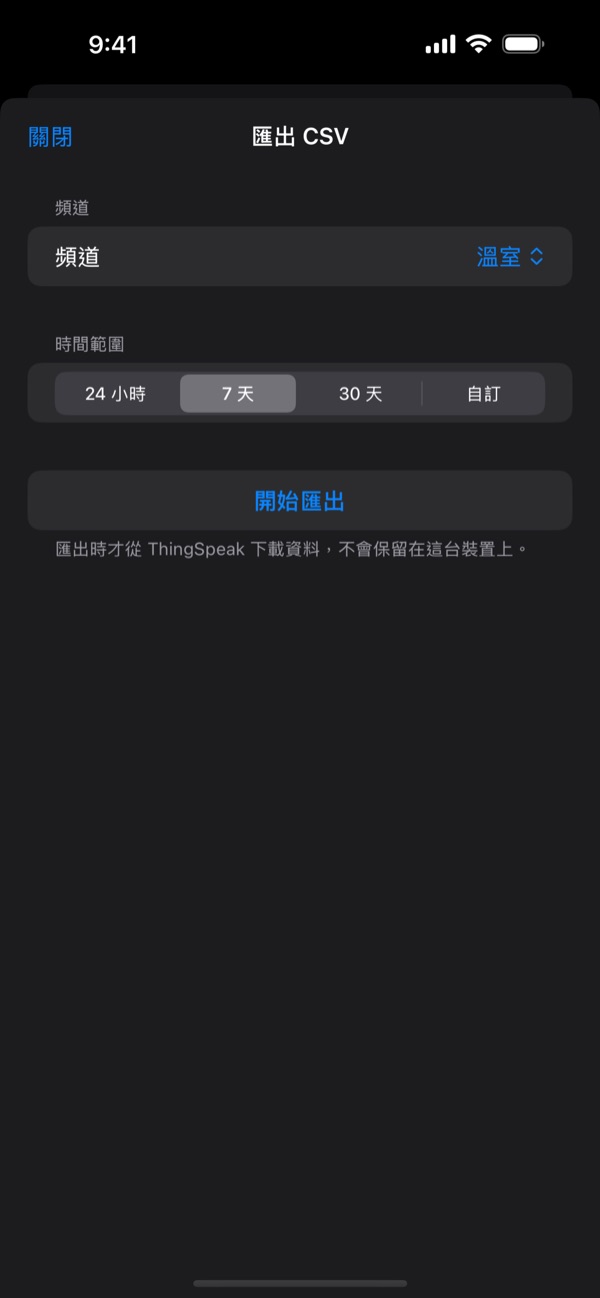
💾 資料保留與 CSV 匯出
資料保留時間(免費版可用)
在「資料管理」選擇裝置上保留多久的資料:6 小時、24 小時(預設)、3 天或 7 天。更早的資料仍保存在 ThingSpeak,查看或匯出時才會下載;設得越短越省空間,並會立即釋放。
CSV 匯出 專業版
- 在「資料管理」點「匯出 CSV」。
- 選擇單一頻道或所有頻道,時間範圍可選 24 小時、7 天、30 天,或自訂範圍(最長 366 天)。
- SensorDeck 會在匯出時才向 ThingSpeak 下載資料,完成後可存到「檔案」或透過 AirDrop、郵件分享。
「清除快取」只會刪除下載的資料,頻道設定(ID、名稱、欄位)會保留。
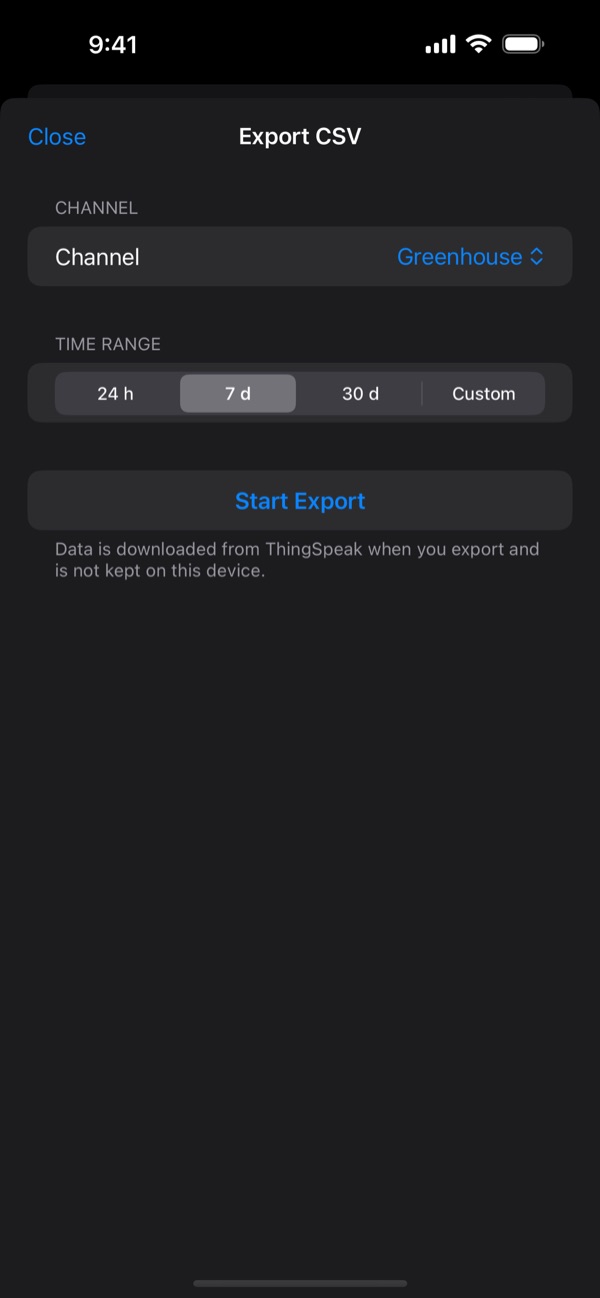
💾 Data Retention & CSV Export
Data retention (free)
In Data Management, choose how much data to keep on the device: 6 hours, 24 hours (default), 3 days or 7 days. Older data stays on ThingSpeak and is downloaded only when you view or export it. A shorter setting frees space immediately.
CSV export Premium
- In Data Management, tap Export CSV.
- Pick one channel or all channels, and a range: 24 hours, 7 days, 30 days, or a custom range of up to 366 days.
- SensorDeck downloads the data from ThingSpeak on demand, then lets you save it to Files or share it via AirDrop or Mail.
Clear Cache deletes downloaded data only; channel settings (ID, name, fields) are kept.
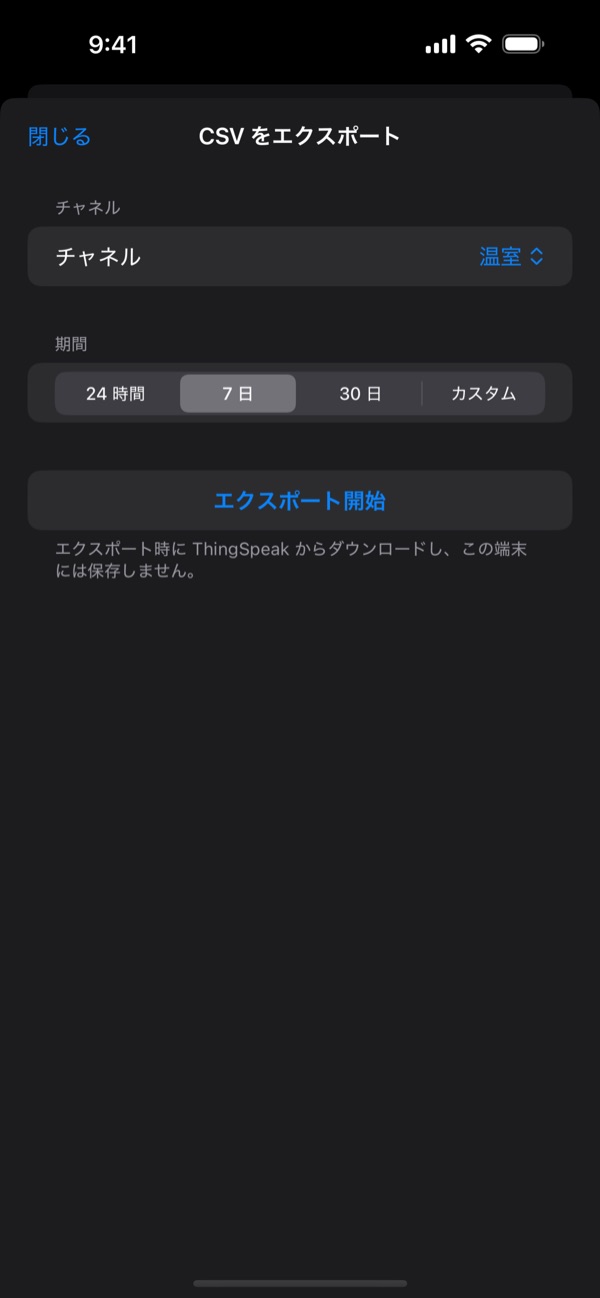
💾 データ保持期間と CSV 書き出し
データ保持期間(無料版で利用可)
「データ管理」で、端末に保持するデータの期間を 6 時間・24 時間(初期値)・3 日・7 日から選べます。それより古いデータは ThingSpeak に残り、表示や書き出しのときにダウンロードされます。短くするとすぐに空き容量が増えます。
CSV 書き出し プレミアム
- データ管理で「CSV書き出し」をタップします。
- 1 つのチャネルまたはすべてのチャネルと、期間(24 時間・7 日・30 日、または最長 366 日のカスタム期間)を選びます。
- SensorDeck がその場で ThingSpeak からデータをダウンロードし、「ファイル」への保存や AirDrop・メールでの共有ができます。
「キャッシュをクリア」はダウンロードしたデータのみを削除し、チャネル設定(ID・名前・フィールド)は保持されます。
版本比較
Free vs. Premium
無料版 vs プレミアム
| 功能Feature機能 | 免費版Free無料版 | 專業版Premiumプレミアム |
|---|---|---|
| 無廣告Ad-free広告なし | ❌ | ✅ |
| 頻道數量Channelsチャネル数 | 1 | 無限制Unlimited無制限 |
| 圖表、自動重新整理、iCloud 同步Charts, auto-refresh, iCloud syncグラフ、自動更新、iCloud 同期 | ✅ | ✅ |
| 基本警示(大於/小於)Basic alerts (greater / less than)基本アラート(より大きい/小さい) | ✅ | ✅ |
| 進階警示(區間、變化過快、離線偵測、勿擾時段、自訂訊息)Advanced alerts (ranges, rapid change, offline, quiet hours, custom message)高度なアラート(範囲、急変、オフライン、おやすみ時間、カスタムメッセージ) | ❌ | ✅ |
| Telegram/Webhook 通知Telegram / Webhook notificationsTelegram/Webhook 通知 | ❌ | ✅ |
| 主畫面小工具(小型)Home Screen widget (small)ホーム画面ウィジェット(小) | ✅ | ✅ |
| 中型與鎖定畫面小工具Medium & Lock Screen widgets中サイズ・ロック画面ウィジェット | ❌ | ✅ |
| Apple Watch 巡查清單Apple Watch patrol listApple Watch パトロール | 1 個感測器1 sensor1 センサー | 全部Allすべて |
| 錶面複雜功能Watch complications文字盤コンプリケーション | ❌ | ✅ |
| Siri 與捷徑Siri & ShortcutsSiri とショートカット | ❌ | ✅ |
| 資料保留時間設定Data retention settingデータ保持期間の設定 | ✅ | ✅ |
| CSV 匯出與進階資料管理CSV export & data managementCSV 書き出しとデータ管理 | ❌ | ✅ |
專業版為一次性購買,非訂閱制。同一個 Apple ID 的所有裝置皆可使用。
Premium is a one-time purchase, not a subscription, and works on every device signed in with the same Apple ID.
プレミアムは買い切りで、サブスクリプションではありません。同じ Apple ID のすべてのデバイスで利用できます。
常見問題
FAQ
よくある質問
SensorDeck 會說明原因,並顯示頻道最後一次回報的時間。常見情況:
- 感測器在這段時間內沒有上傳資料 — 試著切換到較長的時間範圍,或檢查裝置是否連上網路。
- 私有頻道的 Read API Key 錯誤或未填寫。
- Channel ID 輸入錯誤 — 請到 ThingSpeak 網頁確認。
SensorDeck tells you why and shows when the channel last reported. Common causes:
- The sensor didn't upload anything in that time range — try a longer range, or check the device's network connection.
- The Read API Key for a private channel is missing or wrong.
- The Channel ID is mistyped — double-check it on the ThingSpeak website.
SensorDeck が理由と、チャネルが最後にデータを送信した日時を表示します。よくある原因:
- その期間にセンサーがデータを送信していない — より長い期間に切り替えるか、デバイスのネットワーク接続を確認してください。
- プライベートチャネルの Read API Key が未入力または誤っている。
- チャネル ID の入力ミス — ThingSpeak のサイトで確認してください。
- 請到 iOS「設定」→「通知」→ SensorDeck 確認已允許通知。
- 前景檢查需要開啟「自動重新整理」。背景檢查則需另外開啟「背景警報檢查」及 iOS 的背景 App 重新整理;iOS 不保證喚醒時間。可在 App 中查看「上次成功背景檢查」。
- 同一條規則在持續異常時,會依「最短重複間隔」(預設 5 分鐘)才再次通知。
- 若設定了勿擾時段,該時段內不會通知。
- 可以用規則旁的紙飛機按鈕發送測試通知,確認通知管道正常。
- Check iOS Settings → Notifications → SensorDeck and make sure notifications are allowed.
- Foreground checks require Auto-refresh. Background checks also require Background Alert Checking and iOS Background App Refresh; iOS doesn't guarantee when the app wakes. Check “Last successful background check” in the app.
- While a problem continues, a rule notifies again only after its repeat interval (5 minutes by default).
- No alerts are sent during quiet hours, if you set them.
- Use the paper-plane button next to a rule to send a test notification.
- iOS の「設定」→「通知」→ SensorDeck で通知が許可されているか確認してください。
- 前景での確認には「自動更新」が必要です。バックグラウンドでの確認には「バックグラウンドでアラートを確認」と iOS の「App のバックグラウンド更新」も必要です。iOS は起動時刻を保証しません。アプリの「前回成功したバックグラウンド確認」を確認してください。
- 異常が続く間は、「再通知の最短間隔」(初期値 5 分)が経過するまで再通知されません。
- おやすみ時間を設定している場合、その時間帯は通知されません。
- ルール横の紙飛行機ボタンでテスト通知を送って確認できます。
請先打開 SensorDeck 一次,讓小工具取得頻道清單,再長按小工具 →「編輯小工具」重新選擇感測器。小工具約每 15 分鐘更新一次,實際時間由 iOS 決定;開啟「低耗電模式」時更新會變少。若感測器本身沒有上傳新資料,小工具也會維持最後的數值。
Open SensorDeck once so the widget gets your channel list, then touch and hold the widget → Edit Widget and choose the sensor again. Widgets refresh about every 15 minutes, as scheduled by iOS; Low Power Mode reduces updates. If the sensor itself hasn't uploaded new data, the widget keeps showing the last value.
まず SensorDeck を一度開いてチャネル一覧をウィジェットに渡し、ウィジェットを長押し →「ウィジェットを編集」でセンサーを選び直してください。更新はおよそ 15 分ごとで、実際のタイミングは iOS が決めます。低電力モードでは更新回数が減ります。センサー自体が新しいデータを送信していない場合は、最後の値が表示されたままになります。
手錶的感測器清單來自 iPhone。請在 iPhone 上打開 SensorDeck,並保持手錶與 iPhone 連線,清單就會同步過去。免費版只會顯示最需要注意的一個感測器,其餘會提示升級。
The watch gets its sensor list from your iPhone. Open SensorDeck on the iPhone while the watch is connected, and the list will sync over. The free version shows only the one sensor that needs attention most.
ウォッチのセンサー一覧は iPhone から同期されます。ウォッチと接続した状態で iPhone の SensorDeck を開くと、一覧が同期されます。無料版では最も注意が必要なセンサー 1 つだけが表示されます。
Siri 與捷徑是專業版功能。購買後請先打開 SensorDeck 一次,讓 Siri 取得最新的購買狀態與感測器清單。其他 Siri 問題請見 Siri 與捷徑的問題排除。
Siri and Shortcuts are Premium features. After purchasing, open SensorDeck once so Siri picks up your purchase and sensor list. For other Siri issues, see Siri & Shortcuts troubleshooting.
Siri とショートカットはプレミアム機能です。購入後に SensorDeck を一度開くと、購入状態とセンサー一覧が Siri に反映されます。その他の Siri の問題は Siri とショートカットのトラブルシューティングをご覧ください。
圖表最長可看 1 週;CSV 匯出的自訂範圍最長 366 天。「資料保留時間」只決定裝置上存放多久,不影響您能查看的範圍 — 更早的資料會在需要時從 ThingSpeak 下載。長時間範圍會分段載入並顯示進度。
Charts go back up to 1 week, and a custom CSV export can cover up to 366 days. The retention setting only controls how much is stored on the device, not what you can view — older data is downloaded from ThingSpeak when needed. Long ranges load in parts with a progress indicator.
グラフは最長 1 週間、CSV のカスタム書き出しは最長 366 日です。「データ保持期間」は端末に保存する量を決めるだけで、表示できる範囲には影響しません。古いデータは必要なときに ThingSpeak からダウンロードされます。長い期間は進捗を表示しながら分割して読み込みます。
iCloud 會同步警示規則與圖表樣式。頻道、API Key、Telegram 與 Webhook 設定只存在各台裝置上,需要分別設定(可用 QR Code 快速加入頻道)。
若同步沒有生效,請確認所有裝置登入同一個 Apple ID,並在「設定」→ [您的名字] →「iCloud」中開啟 iCloud。同步可能需要幾分鐘。
iCloud syncs your alert rules and chart styles. Channels, API keys, and Telegram and Webhook settings stay on each device and need to be set up separately (use a QR code to add channels quickly).
If sync isn't working, make sure every device is signed in with the same Apple ID and iCloud is turned on in Settings → [your name] → iCloud. Changes can take a few minutes to arrive.
iCloud ではアラートのルールとグラフの表示形式が同期されます。チャネル、API キー、Telegram と Webhook の設定は各デバイスに保存されるため、個別に設定してください(QR コードを使うとチャネルをすばやく追加できます)。
同期されない場合は、すべてのデバイスで同じ Apple ID にサインインし、「設定」→[ユーザ名]→「iCloud」で iCloud がオンになっているか確認してください。反映まで数分かかることがあります。